Salesforce Sales Engagement Setup and Configuration
Confirm your Salesforce edition before enabling Sales Engagement.
Before you open Setup, answer one question: which edition are you actually on?
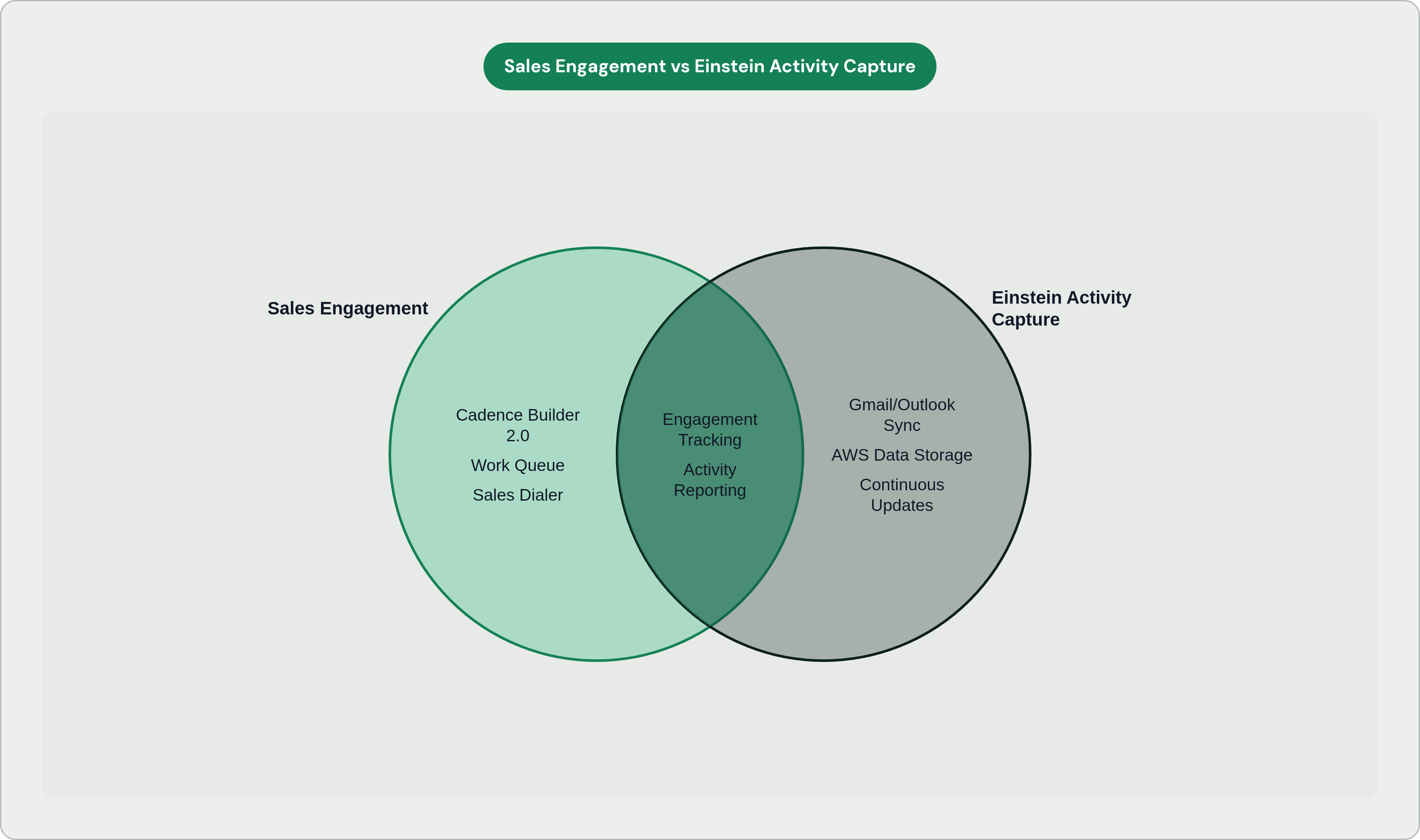
Sales Engagement is included in Performance and Unlimited Editions. It costs extra in Professional and Enterprise. It also exists as an add-on for Service Cloud and Lightning Platform. Einstein Activity Capture is not supported for Experience Cloud or Service Cloud-only users. If your org is licensed through one of those clouds, EAC is simply off the table. And since EAC is required for engagement tracking to work, that's not a small footnote.
Here's the wrinkle that trips people up more than you'd expect. Enterprise Edition surfaces different permission set labels than Unlimited and Performance. The Unlimited and Performance versions carry "Included" in the name. If you manage multiple orgs and search for the wrong label in the wrong org, you won't find what you're looking for. You might assume the feature is unavailable. It isn't. You're just searching for the wrong thing.
One more thing before you touch anything. If your org had Sales Engagement through an add-on license in Performance or Unlimited before Summer '22, Salesforce recommends migrating those users to the Included permission sets before removing the old permissions. Skip that step mid-migration and you can strip access from active users with zero warning.
Confirm your edition before you open Setup. Everything downstream depends on it.
Turning on Sales Engagement and making the first configuration decision
The path: Setup, search "Sales Engagement," navigate to Sales Engagement Settings, Automate tab, toggle on "Turn on Sales Engagement."
That part is easy. What follows isn't hard either, but it requires a real decision rather than just clicking through.
Salesforce's recommended posture is to enable all features first, then individually disable anything you don't need. This is the opposite of a minimal-footprint approach. It's also the right call. Disabling a feature later costs almost nothing. Discovering that a feature was never enabled after reps have already been trained costs rework, re-permission cycles, and a queue of Slack messages you did not want.
Enabling Sales Engagement immediately triggers the need to configure Einstein Activity Capture. Salesforce's own implementation guide treats these two as coupled at Step 1, not as separate workstreams. That matters because EAC connects to Gmail, Google Calendar, Microsoft Outlook, and Microsoft 365. You have to decide right now which email and calendar systems are in scope. Not later. Now.
EAC creates at least one configuration during initial setup. You can add more to customize sync behavior for specific users or profiles. The defaults sync events and contacts bi-directionally and automatically exclude your internal email domain from capture. Both are editable, but most teams don't need to touch them right away.
One expectation worth setting before anyone goes live: EAC updates send continuously but not in real time. Events typically sync within minutes, sometimes longer. Reps who don't know this will assume a missed log is a bug. Tell them before they file a ticket.
Assigning the right permission sets to the right roles without doubling up
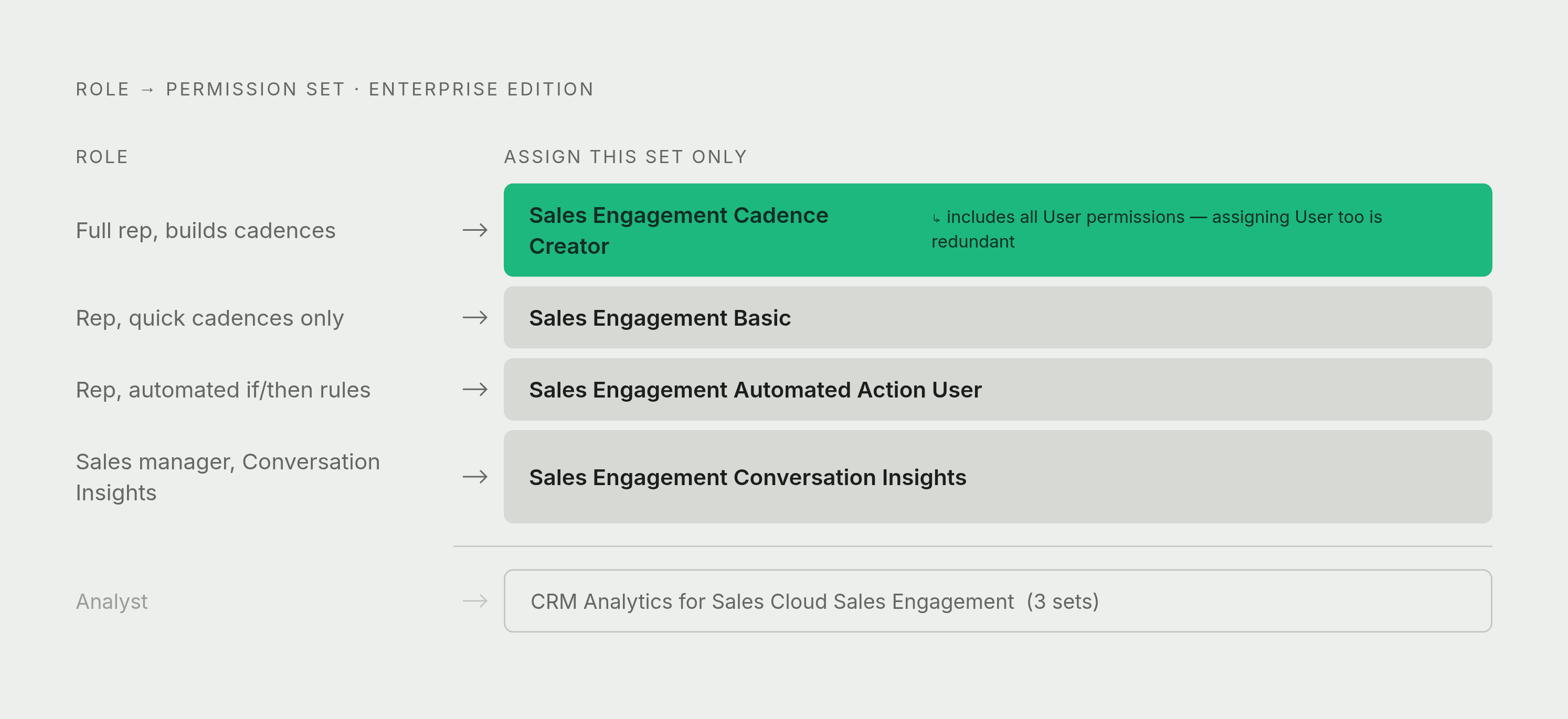
Four primary permission sets in Enterprise Edition: Sales Engagement Cadence Creator, Sales Engagement Quick Cadence Creator, Sales Engagement User, and Sales Engagement Basic. In Unlimited and Performance Editions, the equivalent sets carry "Included" in the name.
The mistake that shows up most often in permission audits is straightforward but easy to miss: Cadence Creator already includes all User permissions. If you assign both Cadence Creator and User to the same person, you've created redundancy. That noise accumulates fast across a large org, and when you're troubleshooting something six months later, the extra permissions add confusion you didn't need.
Beyond that, the mapping is pretty clean once you know who does what:
- Full reps building cadences: Sales Engagement Cadence Creator, nothing else
- Reps running quick cadences only: Sales Engagement Basic
- Reps building their own automated if-this-then-that rules: Automated Action User, which is a distinct permission not bundled with Cadence Creator
- Sales managers using Einstein Conversation Insights: Sales Engagement Conversation Insights, which is not a general user permission
- Analysts needing edit access to Activities and Lead Scoring dashboards: CRM Analytics for Sales Cloud Sales Engagement permission sets (three of them; most reps don't need these)
One constraint that affects orgs with mixed license types: all Sales Engagement permission sets can only be assigned to users with the standard Salesforce user license. Worth confirming before you start assigning anything.
Map your roles before making a single assignment. Manager, full rep, quick-cadence-only rep, analyst. Four rows. It takes twenty minutes and eliminates the most common mistakes before they happen.
Building cadences in Cadence Builder 2.0 — structure, tracks, and step logic
Before you open Cadence Builder, confirm two things: the Sales Engagement app is installed, and the Cadence Creator permission is assigned. Neither of those is the builder itself. Worth verifying before you spend time wondering why you can't find something that should be there.
Cadence Builder 2.0 uses three separate tracks: main, positive, and negative. A prospect moves between tracks based on how they respond to outreach steps. Creators define entry and exit conditions for each track, then build individual steps using drag-and-drop elements. Steps can include email, phone calls, social outreach, and custom tasks, with a call script or email template attached to each and timing defined between them.
Two settings are easy to miss. Skip them and they will silently break your branching logic.
First: "Define Custom Call Results" in the Call tab. Enable this to unlock cadence branching by call disposition. Without it, branching based on call outcome is simply unavailable. No error message. The option just won't appear.
Second: LinkedIn InMail and Connection Request options only show up in the builder if an admin has explicitly enabled those features. If reps don't see them, they'll assume something is broken. Worth communicating ahead of time so you're not fielding the same question from twelve people at once.
Once cadences are built, reps access them through the Work Queue inside the Lightning Sales Console. The queue surfaces the next action across all active cadence targets. This is the rep's primary interface. Spend time in it before training begins so you can explain it from memory, not from a slide.
Configuring the supporting features that make cadences actually run
A cadence is a plan. These are the tools that execute it.
Sales Dialer is Salesforce's in-app calling solution. Reps make and receive calls, leave pre-recorded voicemails, take notes, and log call results without leaving Salesforce. If it's new to the org, it requires a distinct setup step that's easy to overlook when you're moving fast.
Inbox lets reps send emails with calendar availability included, schedule send times, and use Einstein Email Insights and Recommended Connections. The Salesforce Inbox mobile app retired in early 2024. Desktop Outlook and Gmail integrations are the current path forward.
Automated Actions must be turned on in Setup separately. This is what lets reps build their own if-this-then-that rules around cadence targets they own. It is not on by default, and it is easy to forget because nothing breaks visibly when it's missing.
Macros let reps automate repetitive multi-step tasks from a single trigger. Log a call, send a follow-up email, create a task. All at once. The manual overhead after each rep interaction is real, and macros cut into it in ways that show up in rep satisfaction.
Sales Prospecting Bot and Buyer Assistant are optional. The first is an Einstein Bot that handles information collection before a rep engages. The second is a web bot that engages prospects on your website and accelerates time-to-lead. Most relevant for high-volume top-of-funnel teams. Not everyone needs them, but skipping them on purpose is different from forgetting they exist.
Sales Cloud Everywhere is a Chrome extension that lets reps interact with and update Salesforce records while browsing LinkedIn or company websites. Reduces tab-switching friction for reps who prospect heavily online.
Einstein Lead Scoring feeds into Work Queue prioritization. Configure it during this step if it's new to the org.
The point isn't that you need all of these. The point is that skipping one accidentally is different from skipping it on purpose.
EAC retirement notices and migration steps admins cannot afford to skip
This section matters precisely because the consequences of missing it aren't immediate. They surface later. A manager pulls a report and finds it empty. A downstream feature stops working and nobody can explain why. By then, the setup decisions that caused it are months old and hard to trace.
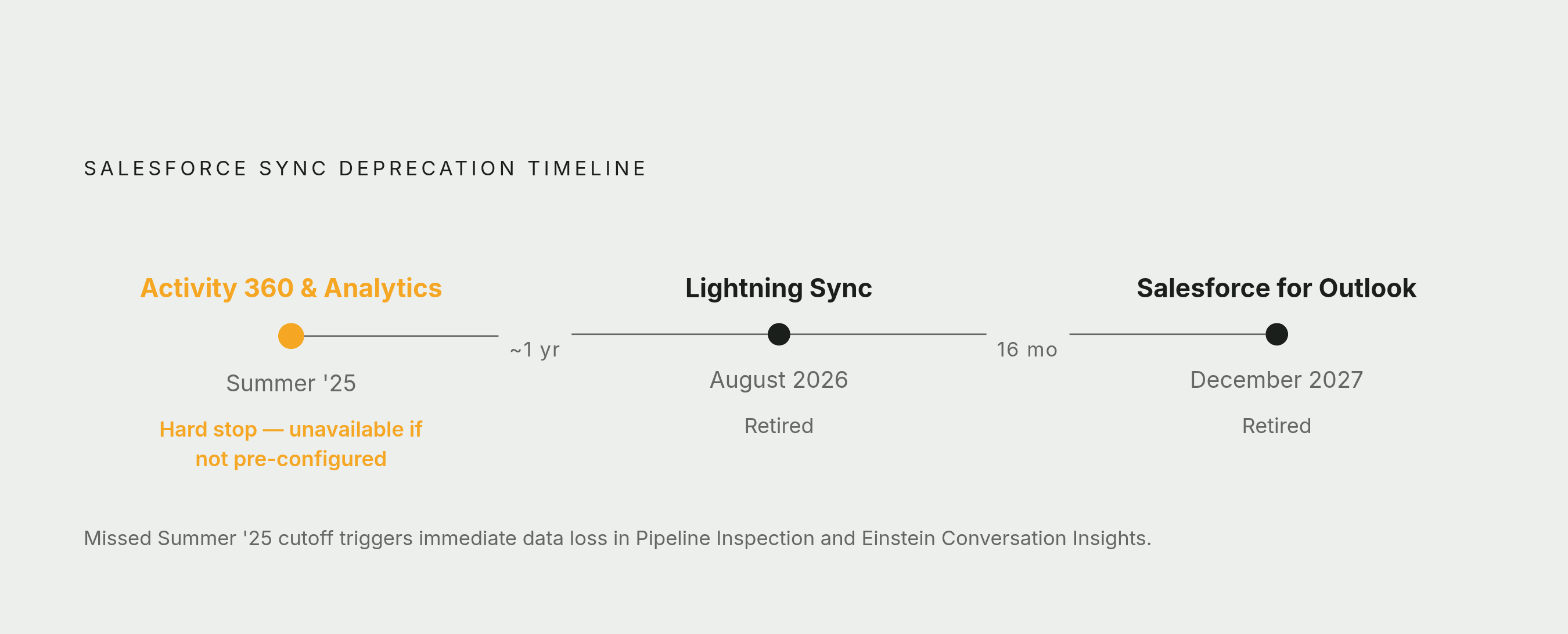
Starting Summer '25: Activity 360 Reporting, Activity Metrics, and Activities Analytics Dashboard are no longer available unless previously set up. The data from these tools that feeds Pipeline Inspection and Einstein Conversation Insights is also unavailable unless configured before that cutoff. That's not a soft deprecation. That's a hard stop.
For orgs set up before Summer '25, Salesforce recommends updating and migrating email to Sync Email as Salesforce Activity. This migration preserves the activity data pipeline that downstream reporting depends on. Skip it and you'll notice the gap when reporting goes quiet.
A few additional constraints worth understanding before they become someone else's surprise:
- EAC does not handle custom objects, attachments, or advanced reporting. Teams expecting those capabilities need supplemental tooling.
- Historical data stored in AWS becomes inaccessible if licenses change or users leave. That's an operational risk worth raising with whoever owns data governance before it lands on their desk as a crisis.
Two deprecation dates to put on a roadmap now:
- Lightning Sync retires August 2026.
- Salesforce for Outlook retires December 2027.
Both affect how activity data reaches Salesforce. Both need to be in your migration planning, not added to it reactively.
Reporting setup and what the out-of-the-box Sales Engagement Dashboard actually covers
The out-of-the-box Sales Engagement Dashboard gives you an org-wide view of cadence performance: converted leads, email engagements, and activity patterns. It's functional enough to validate that cadences and EAC are working as configured. The default view isn't beautiful, but in the first few weeks, you mostly just need to know "is this thing working?" and it answers that.
The dashboard is customizable beyond defaults. Before you touch anything, make sure users who need edit access to Activities and Lead Scoring dashboards have the three CRM Analytics for Sales Cloud Sales Engagement permission sets assigned. These are separate from the general user permissions covered earlier and easy to miss because they live in a different part of your mental model of the permission structure.
Einstein Conversation Insights generates automatic call summaries and surfaces key trends. The Conversation Insights permission must be assigned to managers, and the underlying EAC and Dialer connections must be live for it to have anything to work with. Enabling the feature without verifying the data connections underneath it is a common enough mistake that it's worth checking explicitly, not assuming.
Practical check before going live: confirm the dashboard is populating with test data from at least one active cadence and one connected email account. Do this before training begins, not during it.
Going live — what managers and reps need to know on day one
With setup complete, managers create cadences and add prospects. Reps work from the Work Queue inside the Lightning Sales Console.
Start rep training there. The Work Queue is the operational center. It surfaces prioritized actions across all active cadence targets. If a rep understands the Work Queue, they understand the product well enough to be useful on day one.
A few things worth communicating clearly before that first session:
Einstein Conversation Insights auto-summarizes calls and flags key trends. Reps don't need to manually note every call. But managers should set clear expectations about what ECI captures versus what still requires manual input. That line isn't always obvious, and ambiguity there creates inconsistent data faster than most teams expect.
Agentforce Sales agents can prospect, qualify leads, book meetings, prepare account briefs, recommend next best actions, and generate quotes. These capabilities are embedded in the workflows reps already use across Sales Cloud, Slack, and Teams. The Engagement Agent can now qualify Contacts and Person Accounts in addition to Leads. That matters for financial services, healthcare, and B2C teams whose primary records aren't Lead objects.
Salesforce Momentum, coming in Summer '26, captures every call, email, and meeting and writes it back to Salesforce in real time. It provides the activity foundation that Agentforce agents need to surface deal risks and guide next steps accurately. Worth tracking as it approaches.
Once EAC is connected and syncing, reps still need to act on what's been captured. Tools like Next Step integrate directly into Salesforce to draft replies and log activity automatically based on what EAC surfaces. This removes the manual data entry work that quietly undoes the efficiency gains of a well-configured system.
Five things that should be true before you call it live:
- At least one cadence active
- EAC connected and syncing
- Permission sets validated by role
- Work Queue populated
- Dashboard showing live data
If all five are true, you're ready. If any one of them isn't, that's exactly where to look first.